Manav Sampada UP: eHRMS Login, Leave, Salary Slip & Service Book
Manav Sampada UP is the state government’s eHRMS at ehrms.upsdc.gov.in, managed by NIC’s UP State Centre in Lucknow. Employees sign in with the Employee ID their department issues, then apply for leave, download a salary slip, and open their e-Service Book. Accounts are created by your nodal officer — there is no self-registration.
What Manav Sampada UP Is, and Who Runs It
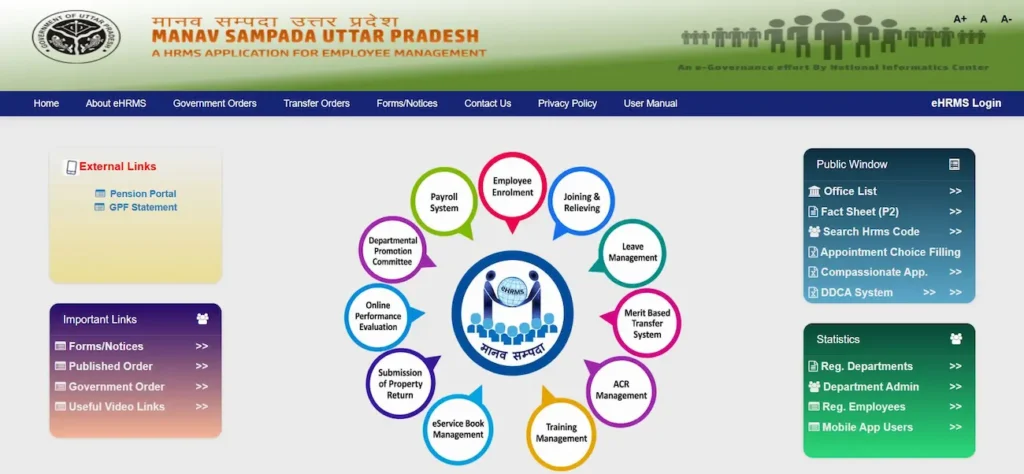
Manav Sampada (मानव सम्पदा) is the eHRMS — electronic human resource management system — used across Uttar Pradesh government departments. The portal itself states that it is managed by NIC, UP State Centre, Lucknow, and that the data on it is owned by the respective department. That second point matters more than it looks: when a posting or a date of birth is wrong, the correction sits with your department, not with the website.
The national parent portal is ehrms.nic.in. Uttar Pradesh’s own instance is ehrms.upsdc.gov.in. The same software runs in Himachal Pradesh and Uttarakhand, which is why UP staff sometimes land on another state’s app or login page.
About 1.7 million state employees are covered, across Basic Education, Medical and Health, Police, Revenue and the rest. The system was built by NIC UP at the request of the Department of Appointment and Personnel. Your Employee ID stays with you for your entire service and links leave, pay, postings and promotions in one record.
The Official Site and How to Tell a Fake One
One address is official: ehrms.upsdc.gov.in. Both the plain and the www. version work, and both load over HTTPS. Three checks take five seconds:
- The address ends in upsdc.gov.in
- The padlock shows in the browser bar
- Nobody from the portal asks for your password or OTP by SMS, email or WhatsApp
People type the address in many ways — manav sampada up gov in, manav sampada up gov nic in, ehrms upsdc gov in up, manav sampada upsdc gov in. They lead to the same place. The national site ehrms.nic.in also points Uttar Pradesh employees to ehrms.upsdc.gov.in, so if you reach the national portal, that is where you go next.
About this site: we are an independent guide. We are not a government body and have no connection with NIC or the Uttar Pradesh government. We never ask for your Employee ID, password or OTP, and nothing here logs you in.
Who Gets an Account (No Self-Registration)
There is no registration form on Manav Sampada. You cannot create your own account, and any site offering to register you for it is not what it claims to be.
Your department’s nodal officer enters your record and issues your Employee ID. You collect it from your office. Three things have to be true before you can log in: you are a serving Uttar Pradesh state government employee, your department is onboarded to eHRMS, and your record has been created and activated.
For Basic Education staff, the route runs through your principal or head of institution to the BEO and the BRC office. In other departments it is your DDO or departmental nodal officer.
Retired employees: access to pension-related records varies by department. Ask your office rather than assuming it is available.
How to Log In to Manav Sampada UP
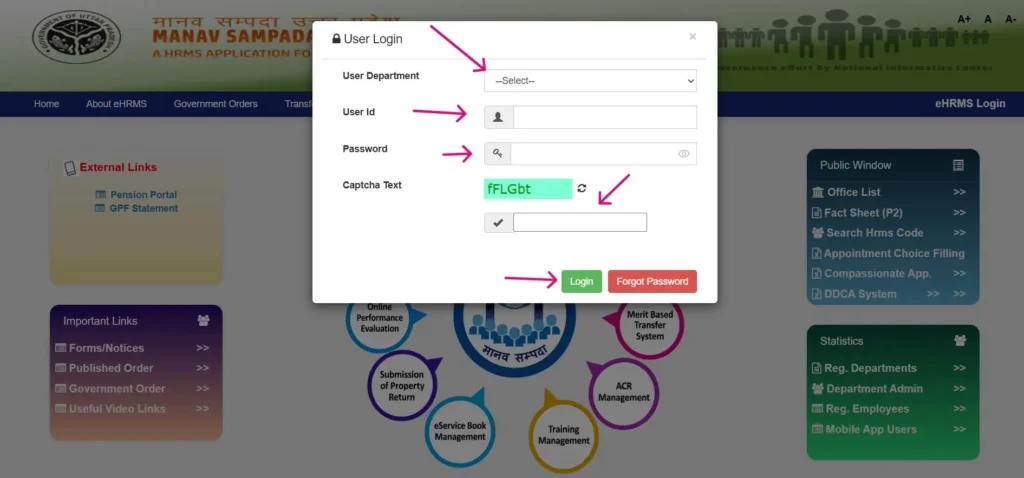
To log in, open ehrms.upsdc.gov.in, open the eHRMS login panel, choose your department, enter your Employee ID as the User ID, type your password and the captcha, and select Login.
- Open ehrms.upsdc.gov.in in Chrome or any current browser.
- Open the eHRMS login panel on the portal home page.
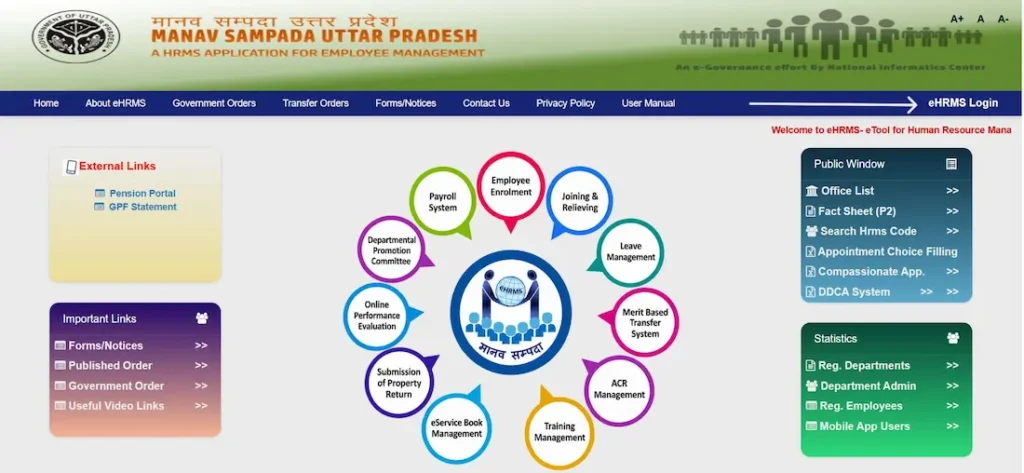
- Choose your department from the dropdown. Get this wrong and the login fails even with correct details — it is the most common reason people think their account is broken. Basic Education staff select EDUBASIC.
- Enter your Employee ID in the User ID field.
- Enter your password.
- Type the captcha exactly as shown, matching upper and lower case.
- Select Login. Some departments also send a one-time password to your registered mobile.
What the Default Password Actually Is
Three different formats circulate online, and that is the honest starting point. The one most UP employees are given is the first three letters of your name in capitals followed by your year of birth — someone named Rajesh born in 1985 would get RAJ1985. A second version uses the last four digits of Aadhaar instead of the birth year. A third is simply a password handed over by the department.
Two things decide which applies to you. The format is set by your department, not by the portal. And it follows the spelling in your service record, not the spelling you normally use.
It also stops working the moment anyone has reset the account. If none of these open it, your nodal officer holds the correct one.
If Your Password Does Not Work
Use Forgot Password on the login panel, enter your Employee ID, and set a new password after the OTP arrives on your registered mobile.
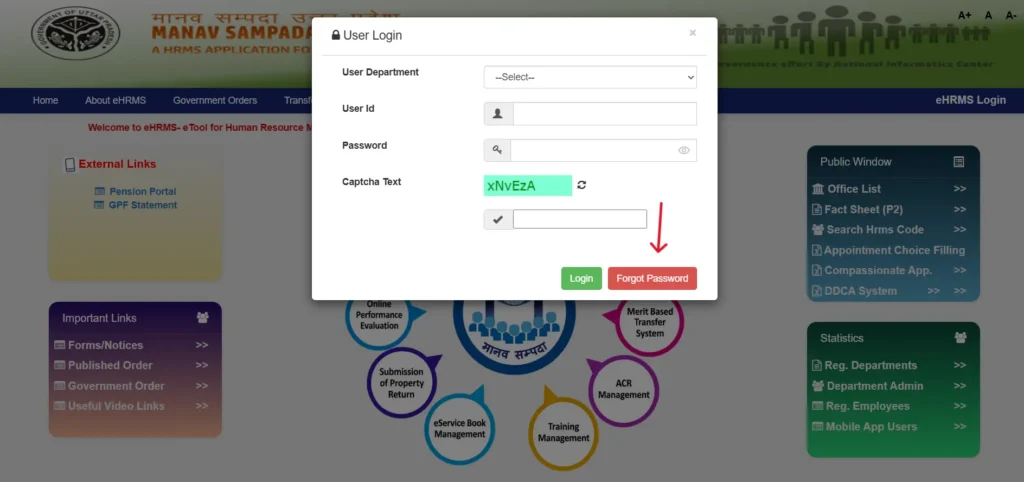
The real blocker is the mobile number itself. For most employees it is the one submitted with their joining paperwork years ago. If that number is dead or changed, no OTP will ever reach you, and the reset cannot be completed from your end.
Only your nodal officer can update the mobile number in your record. Take your ID and a written request.
Logging In by Department
The login screen is the same for everyone. What changes is the department you pick and who maintains your record afterwards.
Teachers and Basic Education (EDUBASIC)
Select the Basic Education directorate, shown as EDUBASIC, then log in with your Employee ID as usual.
Your record is maintained at school and block level. You cannot edit your own name, parentage or service details — if any of these are wrong, take evidence to your BRC office and have it corrected there. The escalation path runs from your head of institution to the BEO, then the BRC, and the BSA for district-level matters.
Your Employee ID appears on your appointment letter, your government ID card, your salary slip and the first page of your service book.
Shikshamitras and Anudeshaks are maintained as separate categories. Their casual leave balances were corrected on the portal during 2026, so check your leave account before applying rather than assuming the figure on screen is current.
Medical and Health Staff (MEDHLTH)
Select the Medical and Health department at login. The steps are identical.
Health staff move between postings more often than most, and that is usually what breaks a login. Your record has to be mapped to the facility you are actually working at. If your account opens but shows an old CHC or district hospital, or refuses the login entirely, your record has not been shifted to your current posting. Your nodal officer handles that transfer.
Police Staff and Pay Slip
Select the Home department entry that covers Police, then log in normally.
For the pay slip, open the payroll section after logging in, pick the month and year, and download the PDF. It sets out earnings and deductions line by line, which is what banks look for when you apply for a loan.
What you are paid depends on rank, pay level and the allowances attached to your posting, so the figure differs even between colleagues at the same rank. If a month is missing, payroll for your unit has not been posted yet.
Find Your Employee ID Without Logging In
Two ways, and one of them needs no password.
On your documents. The Employee ID is printed on your appointment letter, your government ID card, your salary slip and page one of your service book.
Through the Fact Sheet (P2). Open ehrms.upsdc.gov.in, go to Public Window, then Fact Sheet (P2) — or go straight to ehrms.upsdc.gov.in/ReportSummary/PublicReports/EmployeeFactSheet. Choose your parent department, then your office or district, search by name or eHRMS code, and view the report.
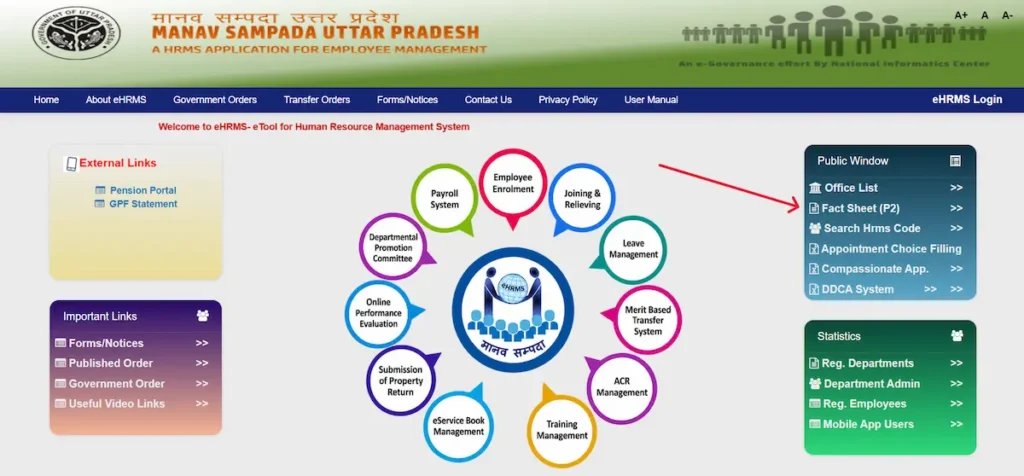
This is the route the department itself uses. Teachers across UP have been formally instructed to open the Fact Sheet, print it, sign it and submit it to their BRC office for verification.
If your name returns nothing, try a different spelling. Service records and everyday spellings part ways more often than people expect.
A second public search sits at ehrms.upsdc.gov.in/ReportSummary/PublicReports/searchEmpList. Both tools show service details only — designation, office, posting — never personal contact information.

Apply for Leave (अवकाश)
Log in, open the leave module, select Apply Leave, choose the leave type and dates, upload your application, and submit. Since the Chief Secretary’s order of 11 March 2026, all leave for state employees is to be granted through Manav Sampada.
Add your Reporting Officer first. Before your first application, open the online leave section, select Add Reporting Officer, choose your officer and save. Without this, the application has nowhere to go. Basic Education teachers select the BEO, who sanctions what falls within his powers and forwards the rest to the BSA.
The form asks for: Reporting Officer, Leave Type, From and To dates, Number of Days, Leave Prefixed Day, Leave Suffixed Day, Ground on Which Leave is Applied for, Station Leave Required, Address During Leave, and a contact number.
Your uploaded application must be under 200 KB. A Compress PDF link sits on the form for files that are too large. After Submit, a confirmation box appears — select Yes. Note the application number.
Documents by Leave Type
| Leave type | Document | Note |
|---|---|---|
| Casual (CL) | None | Short absences |
| Earned (EL) | None | Joining request required after |
| Medical (ML) | Certificate from a registered practitioner, with registration number and supporting reports | Extension applies with reference to the approved leave |
| Maternity | Medical certificate | Joining request required |
| Paternity | Birth proof | — |
| Child Care (CCL) | Grounds, supporting proof | Extension by reference |
| Study | Admission letter, NOC | — |
| Half Pay / Commuted | Medical certificate where applicable | Confirm with your DDO |
PDF, under 200 KB. There is no compensatory leave column on the portal — a Special Leave option is used instead.
Leave Balance, the Joining Request, and the 2026 Holiday Rule
Your balance sits in the leave account inside the leave module and can be downloaded.
- The joining request is what locks most people out. After every leave except CL — EL, ML, maternity, CCL — you must send a joining request when you return. Until it is approved, the portal will not let you apply for any further leave online.
- Changed 18 May 2026: a Sunday or public holiday falling between two leave days no longer forces two separate applications. The form now asks whether a holiday falls within your dates; answer Yes and enter the count of days. Before this, those days came out of your CL balance.
Rule position as of 15 September 2026.
Download Your Salary Slip (वेतन पर्ची)
Log in, open the payroll section, choose the month and year, and download the slip as a PDF.
The slip lists earnings and deductions separately — basic pay, allowances, and the deductions against them. Banks accept it as income proof, which is why most people come looking for it.
If a month will not open, payroll for your office has not been posted yet. That is a treasury and DDO timing issue, not a fault in your account. Wait a few days, then ask your accounts section.
Your e-Service Book (सेवा पुस्तिका)
The e-Service Book is your official service record: appointment, joining, promotions, increments, transfers, pay revisions, leave history and family details.
It matters far beyond today. Banks check it when verifying a loan, and the pension section works from it at retirement. A wrong date of birth left alone at 35 becomes a problem at 58.
The common errors are predictable — date of birth, a missing increment, the wrong joining date, an old posting still showing.
Correcting it: download your e-Service Book, check it against the points listed in your department’s order, mark the errors on a self-attested photocopy, and submit it to your BRC office. Teachers have been given two working days for this. You cannot edit locked fields yourself.
Transfer and Posting Orders (आदेश)
Public orders are published on the portal’s Notice Board at ehrms.upsdc.gov.in/Home/HomeNoticeBoard and need no login. Your own order appears inside your account once your department uploads it.
Orders open as PDFs. Some carry a QR code so the receiving office can verify them.
If nothing appears, the usual reason is simply that no order has been issued in your name yet, or your department has not published it. Neither is something you can resolve on the portal — your office can tell you where it stands.
Attendance Lock
Attendance is entered by the head of institution, nodal officer or DDO, then locked for the month. Reports during 2026 have put teacher attendance locking by the 27th; the exact window is set by departmental instruction each month, so confirm it with your office.
Once a month is locked, you cannot correct it yourself. It takes a written request through your department, and a locked month carrying wrong entries can affect your leave record and your pay.
Check your attendance before the lock date, not after.
Annual Property Return
Government servants in Uttar Pradesh file an annual return of property under the state’s conduct rules, and it is submitted through Manav Sampada. The Uttar Pradesh Government Servants Conduct Rules were amended in 2026, so check your department’s current circular before filing.
You declare immovable property, including holdings in family members’ names. The filing window is notified by the Personnel Department each year — your office circulates the date.
Save the acknowledgment. Non-filing is treated as a service matter and can hold up vigilance clearance and promotion.
Office List and Public Reports
Open ehrms.upsdc.gov.in/ReportSummary/PublicReports/GetOfficesByDepatmentandDistrict to list offices by department, district and category. No login, and results export to PDF or Excel.

Each office carries a code built from the department code, the district, and a serial number for the office. Nodal officers use this to confirm staff are mapped to the right office — and a wrong mapping is often why an employee’s record cannot be found. The same public section holds the Fact Sheet, vacancy reports and establishment reports.
The Official App and the Fakes Around It
Search the Play Store for Manav Sampada — not mSTHAPNA. The official listing is titled Manav Sampada, published by National Informatics Centre, package ID in.nic.up.ehrmsup, last updated 30 June 2026. NIC built it for the Department of Appointment and Personnel to view the service book and manage leave. Its Play Store data declaration states no data is collected or shared with third parties.
Two lookalikes appear in the same search. com.babu.manavsampadaup, listed as “Govt. Employee Help UP”, is a private developer’s wrapper — not official. nic.hp.manavsampada is the generic multi-state build, not Uttar Pradesh’s.
Check the publisher and package ID, never the icon. Do not install an APK sent over WhatsApp, and do not switch on installs from unknown sources.
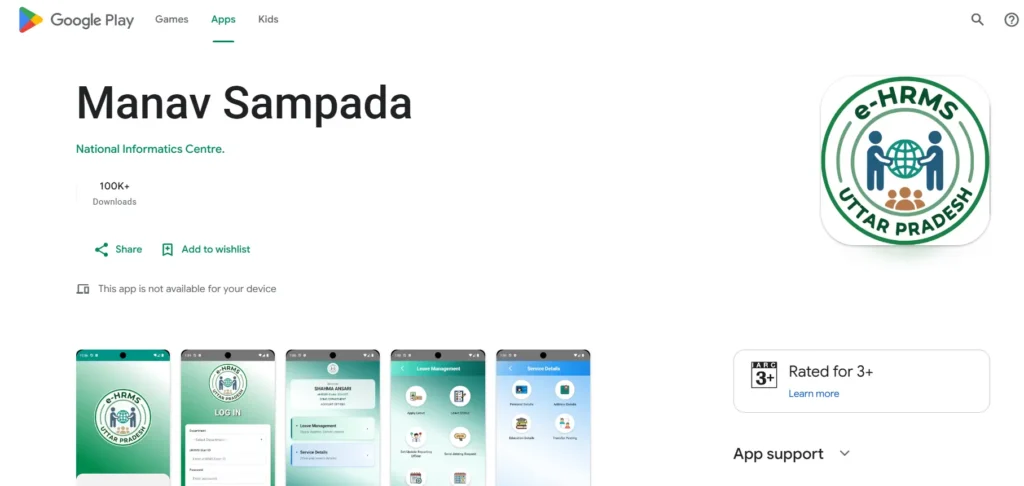
There is no iPhone version. Use the site instead.
Problems Employees Actually Hit, and What Fixes Them
What We Could Confirm, and What We Couldn’t
Instructions for this portal contradict each other across the internet. Here is what holds up.
| Point | What we found |
|---|---|
| Who runs the portal | The portal’s own disclaimer: managed by NIC, UP State Centre, Lucknow, with data owned by each department |
| Official app | Manav Sampada, package in.nic.up.ehrmsup, published by National Informatics Centre |
| iPhone app | None exists. Use the site |
| Default password | Set by your department. The name-plus-birth-year format is common, not universal |
| Leave upload limit | 200 KB, with a Compress PDF link on the form |
| Medical certificate | Must come from a registered practitioner with a registration number. We found no rule requiring it within 48 hours |
| Employee count | Around 1.7 million state employees. Figures of 16 lakh and 20 lakh also circulate |
Claims about blockchain-verified service books, watermarked slips, or automatic emails do not appear in any official material.
Services at a Glance
| Service | Login needed | Where |
|---|---|---|
| Employee login | — | ehrms.upsdc.gov.in |
| Apply for leave | Yes | Leave module |
| Leave balance | Yes | Leave account |
| Joining request | Yes | Leave module, after return |
| Salary slip | Yes | Payroll |
| e-Service Book | Yes | Service records |
| Attendance | Yes | Attendance module |
| Property return | Yes | Dashboard |
| Employee ID / Fact Sheet (P2) | No | Public Window |
| Office list | No | Public reports |
| Transfer orders | No | Notice Board |
Frequently Asked Questions
What is the official Manav Sampada UP website?
ehrms.upsdc.gov.in, managed by NIC’s UP State Centre in Lucknow. The national portal ehrms.nic.in directs Uttar Pradesh employees to that address.
Are eHRMS and Manav Sampada the same thing?
Yes. eHRMS is the system; Manav Sampada is its name in Uttar Pradesh. Both point to the same portal and the same login.
What is the default password for the first login?
Usually the first three letters of your name in capitals followed by your birth year. Your department sets it, so confirm with your nodal officer.
How do teachers log in?
Select EDUBASIC in the department dropdown, then enter your Employee ID and password. Your record is maintained at school and block level.
How do I find my Employee ID without logging in?
Open Public Window, then Fact Sheet (P2), and search by department and name. It is also printed on your salary slip and appointment letter.
Why am I not receiving the OTP?
Your registered mobile number is likely the one from your joining paperwork. Only your nodal officer can update it in the system.
Can I register myself on the portal?
No. There is no registration form. Your department’s nodal officer creates your record and issues your Employee ID.
Is there an official iPhone app?
No. The official app is Android-only, published by National Informatics Centre. iPhone users should use ehrms.upsdc.gov.in in a browser.